Moving6 min readBy Box’d
Moving box app vs spreadsheet: which should you use?
The same kitchen box, recorded three ways. Choose a tool you’ll still want to update halfway through packing.
Which should you choose?
Use a note for a short list. Choose a spreadsheet if you like custom columns and sorting. A moving box app suits you if you want to record and find contents in a tool built around boxes.
If your current list works, you don’t need to replace it.
In this article
We make Box’d, so we’ll use it as the app example. This isn’t a ranking of every moving app. The useful question is whether its way of working fits your move better than a list you already know.
Imagine box 17 holds the kettle, mugs, tea and phone chargers. Whatever you choose, you want to look up “kettle” and know which box to open. Here’s what that takes in each tool.
Compare at a glance
On a small screen, scroll the table sideways.
| Tool | A good fit when | Check before you start |
|---|---|---|
| Phone note | You want a short, searchable list with little setup. | Can you find each box’s entry as the note grows? |
| Spreadsheet | You want custom columns, sorting or a list you can print. | Can everyone read and update it comfortably on their phone? |
| Box’d | You want box records with voice input, photos and item search. | iPhone only. Internet required for search and sync. More than 5 boxes need a paid plan. For Partner Share, only the owner needs to pay; everyone joining can use a free account. |
Notes and spreadsheets can support photos, sharing and voice dictation too, depending on the software and phone. Those features aren’t exclusive to a moving app. The difference is how you organise them around each box.
A phone note gets you started quickly
Open a note and give each box its own heading. Under “Box 17 · Kitchen”, list the contents. Keep all the boxes in that note so you know where to search.
- Kettle
- Mugs
- Tea
- Phone chargers
This may be all you need for a few boxes. You already know how your notes app works, and there are no columns to arrange. Use its search to find “kettle”, then check the heading above it.
As the note grows, keep the headings consistent and give each box some space. A long block of text is harder to scan on a phone. If someone else is packing, share the editable note if your app supports it. Separate copies become separate lists to maintain.
A spreadsheet gives you more control
Start with one row per box and columns for its number, room and contents. You can add an “Unpacked” column later. Keep the first version small enough to use while standing beside a box.
| Box | Room | Contents |
|---|---|---|
| 17 | Kitchen | Kettle, mugs, tea, phone chargers |
Search for “kettle” to find the row. Sort the whole table by room when you want to see the kitchen boxes together. If you prefer one row per item, repeat the box number on each row. That gives you more detail, with more rows to maintain.
A spreadsheet is a good choice if you want your own columns for shelf locations or unpacking priorities. You can add photo links or images where your spreadsheet app supports them. There’s no reason to leave a sheet that already does the job.
Try editing it on your phone before building a large sheet on a laptop. Long contents cells and lots of columns can mean sideways scrolling. For a shared move, check everyone can open and edit the same file.
A moving box app keeps the box and its details together
In Box’d, enter 17 as the box number and add the contents by voice or text. Add photos if they’ll help you recognise what’s inside. Later, search for “kettle” to find the box that contains it.
Say what’s inside while you pack.
“Kettle, mugs, tea, phone chargers.” Check the items before you save, and correct anything the app misheard.
Box’d’s voice input screen, with contents and a kitchen location.
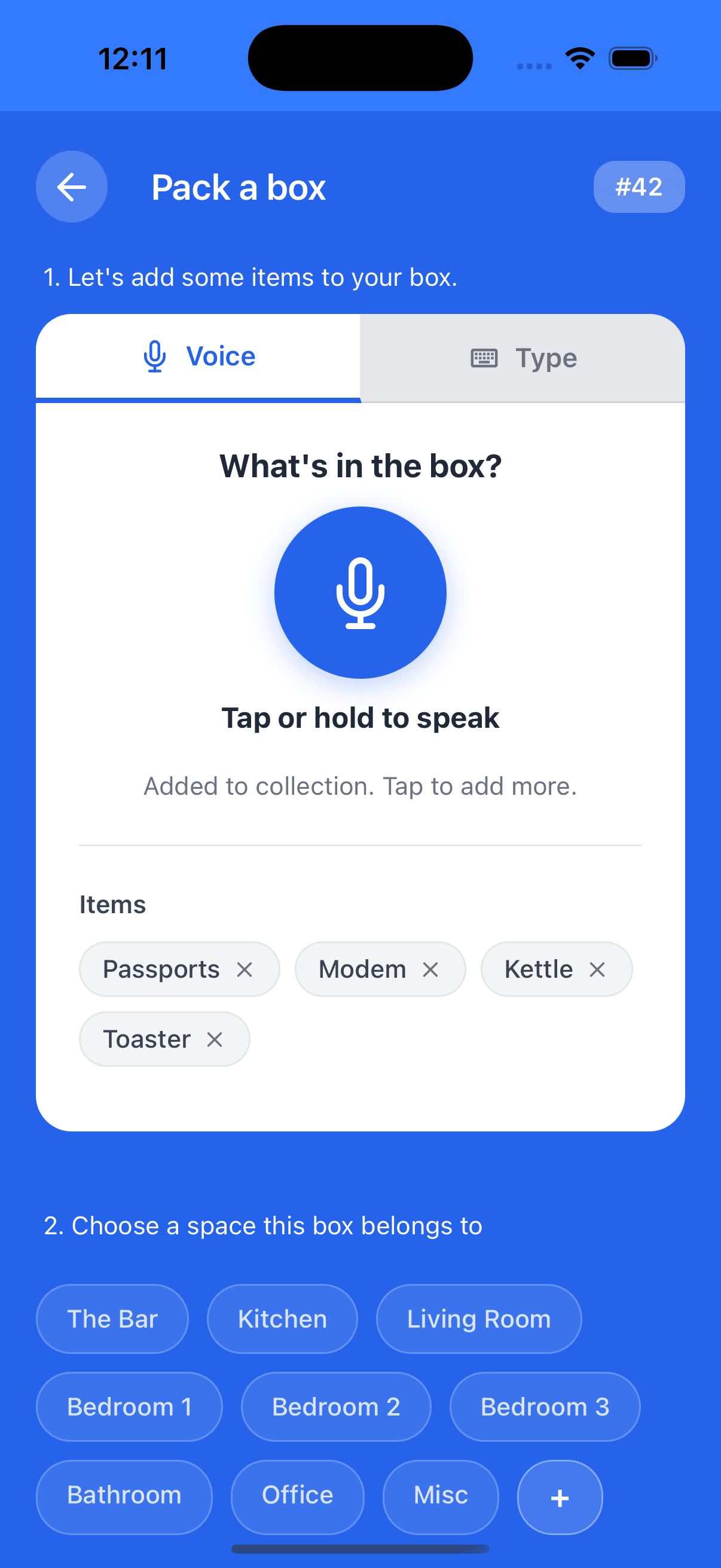
You don’t need a printer. Write 17 on the cardboard with a permanent marker and use that number in the app. Optional QR labels add scanning and Flashlight Search. Handwritten numbers work with the contents list and text search.
If you’re packing together, Partner Share lets you give someone full access to view and manage every box, item and photo in your account. You approve each request and choose how long access lasts. Every paid plan includes sharing. Only the person sharing their inventory needs to pay; everyone joining can use a free account.
Box’d is available on iPhone. Your first 5 boxes are free, with no account needed to start. More boxes need a paid plan, and search and sync need internet. If you need an offline list or your household uses Android, check those needs before committing your move to it.
See Box’d for movingTry it on one box before packing more
If you want a dedicated app, our moving box app comparison covers seven options, with prices, label methods and sharing requirements.
Record one real box in your preferred tool. Close the list, open it again and search for an item. Can you find the number without remembering which room you packed it in?
Then move an item to a different box and update the list. If someone is helping, ask them to find it too. That small check tells you more than a long feature checklist.
Test access where you’ll need it. Some notes and spreadsheet apps support offline files, but you may need to set that up ahead of time. For Box’d, take screenshots of essential box lists before you lose reception.
Once you’ve chosen, our guide to keeping track of boxes when moving walks through numbering, recording contents and finding things at the other end. The same system works with any of these tools.